
“I think my computer died. It just keeps rebooting.”
Those are not the words you want to hear from your wife on an otherwise calm morning.
Taking a break from database posts, I want to post about the workaround needed to retrieve files from a dying hard drive.
Crash and Burn
My wife’s hard drive had indeed crashed. Windows was stuck on a boot loop, and I couldn’t get around it. I tried booting to a Windows USB that would get me to a command prompt and other tools to repair. They weren’t helping.
Important data was backed up, but she had a few recent files that would be nice to get back. I was up for the challenge and wanted to see what data I could still access.
In the midst of troubleshooting, I was able to boot with Ubuntu and see the failing drive was at least partially accessible. While it reported it to be failing, it wasn’t dead yet.
Rebuild
I ordered a new hard drive as well as an M.2 to USB adapter. Once I got the new hard drive setup with Windows, I moved on to trying to connect the old hard drive via the adapter.
I connected the adapter and…no luck. The USB was being recognized, but the drive appeared to be toast. I tried on a few computers to verify and had the same outcome on all of them. Considering the adapter seemed kind of cheap, I figured why not try another.
I made another purchase and in an instance of “you get what you pay for,” the more expensive adapter let me access the drive.
You Shall Not Pass
I thought I was in the clear. Unfortunately, when clicking into the folders on the drive, I got this message:
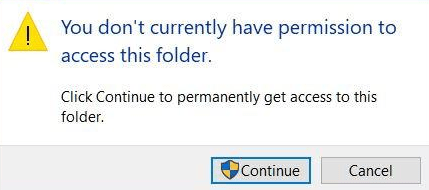
That’s typically not a big deal. In this case, clicking Continue caused Windows Explorer to freeze and the drive to crash.
Coming full circle, I booted with Ubuntu, accessed the old hard drive, and succeeded in copying files from the old hard drive to the new hard drive. After moving the files, I rebooted back into Windows and all was well.
Ubuntu saved the day. Mission accomplished.
Thanks for reading!
 Chad Callihan